Dashboard
Dashboard
Click on the “Dashboard” on the top menu bar:
You will be redirected to the Dashboard
Dashboard gives you a quick summary of the Organization, employees and the current state of the employees
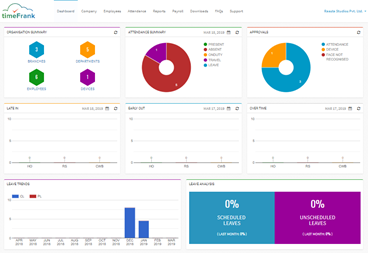
The ‘Organisation Summary’ gives you a count of the registered active branches, departments, employees and devices (mobiles, tablets)
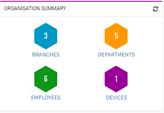
Clicking on each option will open the details in new tab, like if you click on Branches, another tab opens which displays all branch details of organization.
Attendance Summary
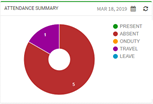
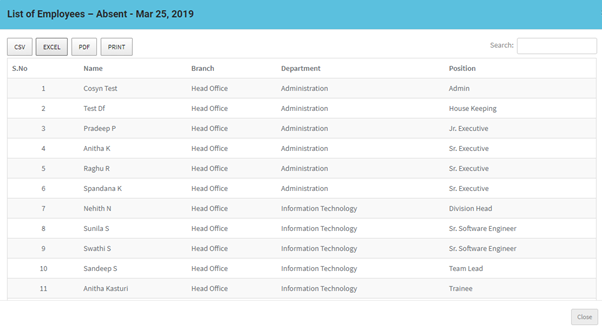
The attendance summary gives you a synopsis of the attendance for the current date in a pie chart format. You can double click on each section of the pie chart to get a list of the employees falling in that category. You can also click on label to get the details, you can view the attendance details for previous day also just selecting the date from calendar.
Each list can be downloaded in different formats like CSV, EXCEL, PDF and directly you can print the details.
Approvals
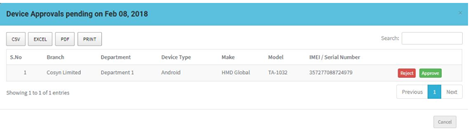
Approvals will display any unauthorised punches like attendance punch which need approval, punches where Face is not Recognised and Devices which are pending for approval(Branch Admin or Department admin login on mobile are seen here for approval)
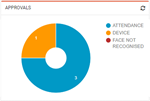
You can double click on each section of the pie chart to get a list falling in that category. You can also click on label to get the details
Each list can be downloaded in different formats like CSV, EXCEL, PDF and directly you can print the details.
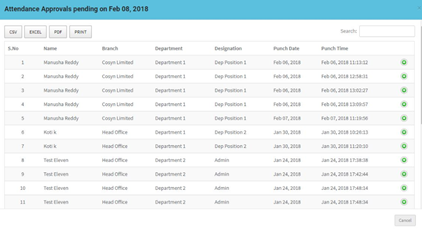
 to expand the punch so that you can approve or Reject punch accordingly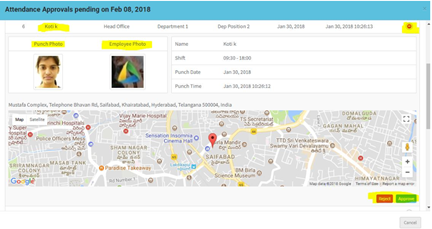
For devices Approve and Reject options are displayed next to device details only
The next line displays the ‘late in’ for the current day and ‘early out’ & ‘over time’ graph for the previous day
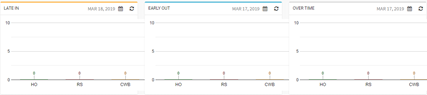
LATE IN
Late IN displays the number of people late on the date branch wise.
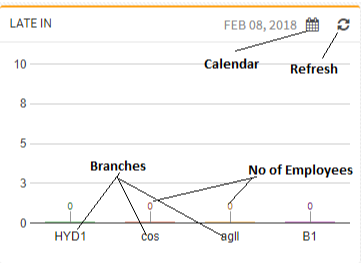
- You can double click on required branch to get a list of employees.
- You can also view the report for other dates also by just selecting the required date from Calendar
- Each list can be downloaded in different formats like CSV, EXCEL, PDF and directly you can print the details.
Early Out
Early Out displays the number of people left early on the date branch wise.
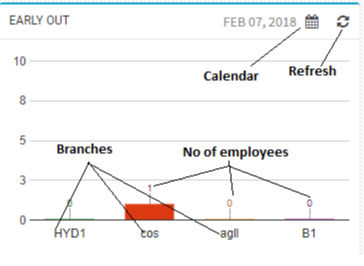
- You can double click on required branch to get a list of employees.
- You can also view the report for other dates also by just selecting the required date from Calendar
- Each list can be downloaded in different formats like CSV, EXCEL, PDF and directly you can print the details.
Over Time
Over Time displays the number of people who worked over time on the date branch wise. (the Over Time is defined for a branch in Branch settings)
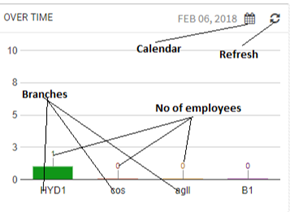
- You can double click on required branch to get a list of employees.
- You can also view the report for other dates also by just selecting the required date from Calendar
- Each list can be downloaded in different formats like CSV, EXCEL, PDF and directly you can print the details.
Leave Trends
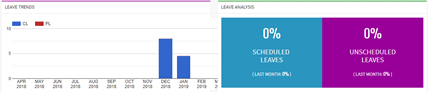
The leave trend displays a bar graph representing the number of people taking leaves in each month and the type of leaves.