Branch Geofence
Branch > Geofence
- Navigate to Company > Branch > Geofence
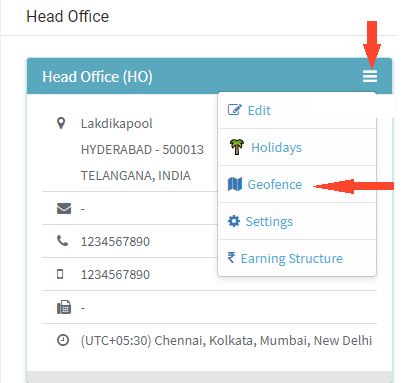
- Geofence’s for each branch should be created separately.
- It is used to know where the employee is punched if he is given permission to punch remotely
- Click New Geofence

- Enter details like Geofence Name
- Enter the address to draw Geofence, Location will be shown
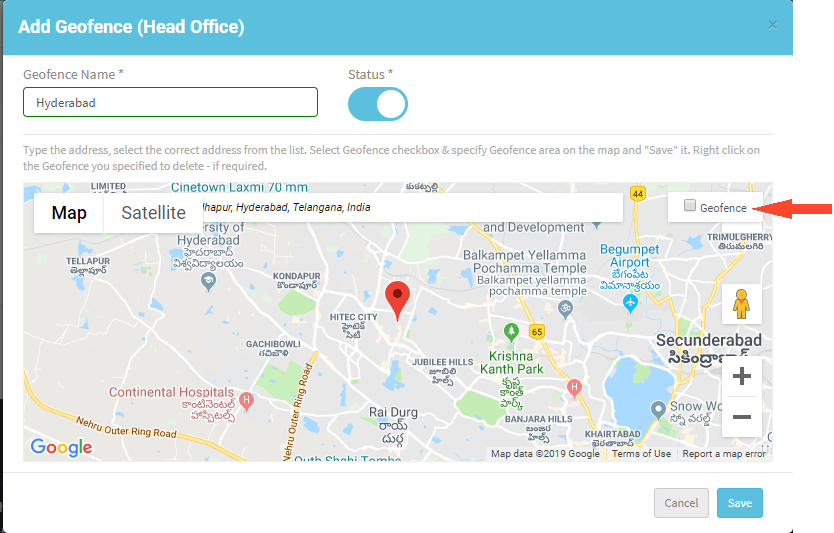
- Can Zoom In and Zoom out the Map
- Check the option Geofence
- Draw the Geofence as per requirement, it is good to draw a big Geofence location
- Geofence will be completed only when both Starting and End points of Geofence meet
- Can change the Status of Geofence if not required, but no employee should be assigned to Geofence location
Assign Geofence
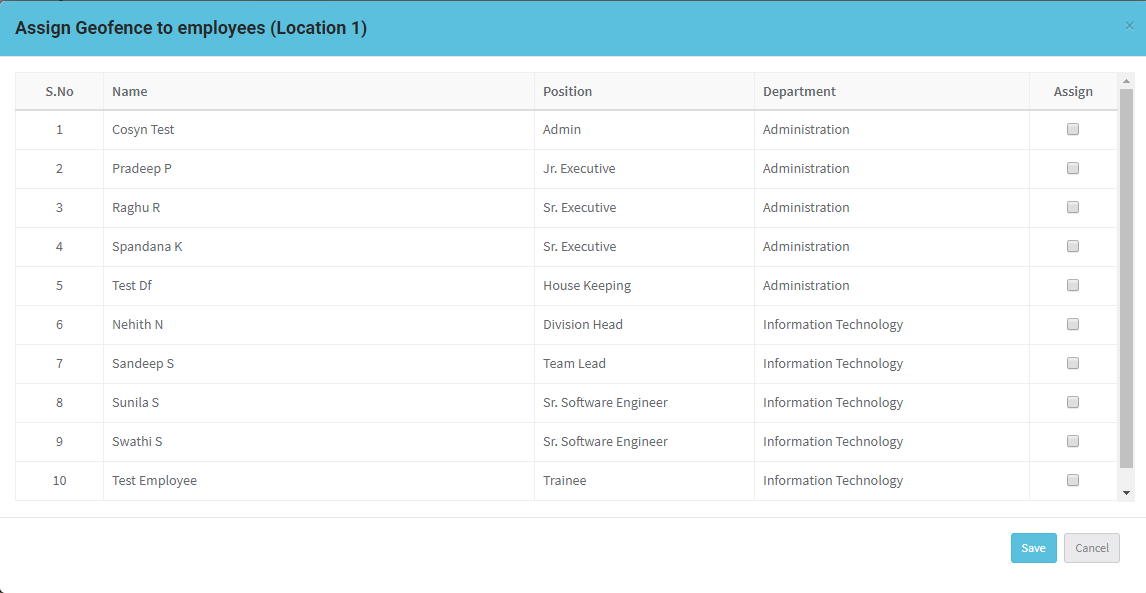
- You can assign Geofence to employees by clicking on Assign option
- Select the employee(s) for the Geofence, click Save
- Same way we can Unassign Geofence to Employees