Employee Shift
Employee > Shift
- You can view employee Shift details on Shift tab
- Navigate to Employee > Shift tab
- You can assign the required shift for employee
- General shift is assigned to employee automatically
- You can move the shifts from Shifts box to Assigned Shifts box and vice versa using arrows.
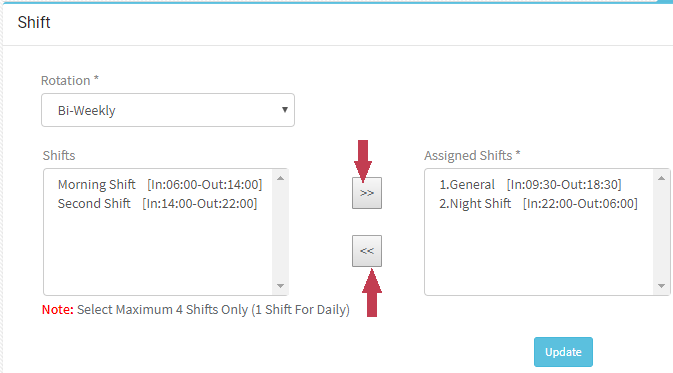
- You have different Rotations – Daily, Weekly, Bi-Weekly, Three Week, Monthly
- Only one shift can be assigned when Daily is selected for rotation
- Can select up to maximum 4 shifts if it is not Daily
- There should be one shift selected for employee for sure
- Select the required shift and click ‘Update’
Employees > Edit Schedule
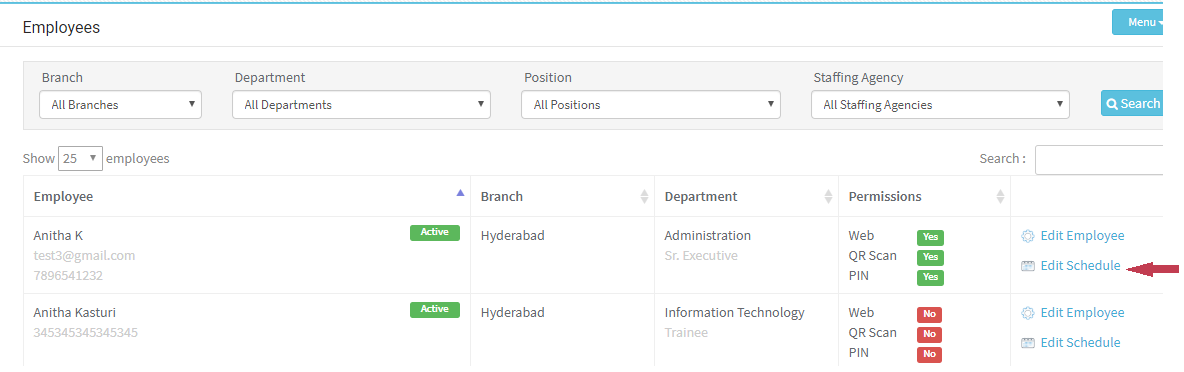
- You can edit schedule for an employee
- Click on Edit schedule for the required employee
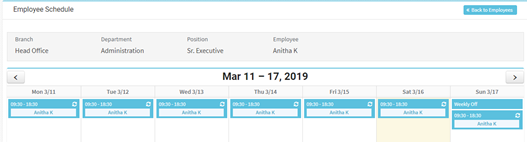
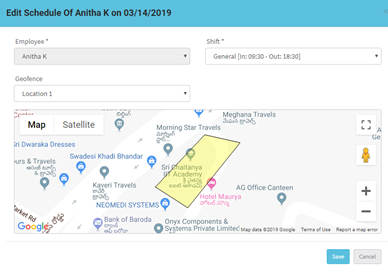
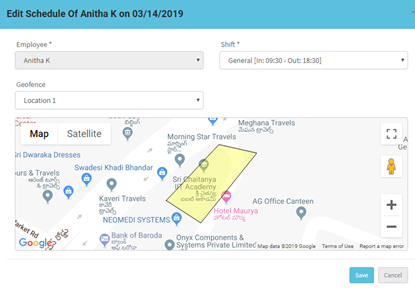
- You can edit the schedule of employee by clicking on the already defined schedule
- Change to required shift, and if want to change the Geofence select from the list
- Click Save
- The schedule will be changed only for the day
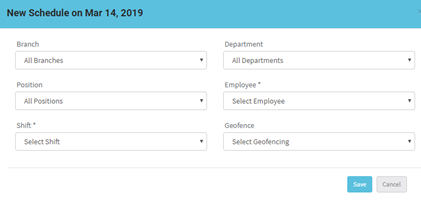
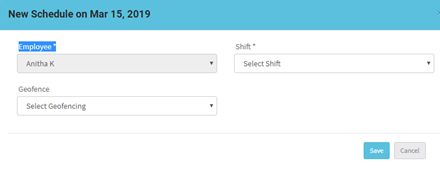
- If there is not schedule defined for the day click on the empty space
- Select the shift click Save.
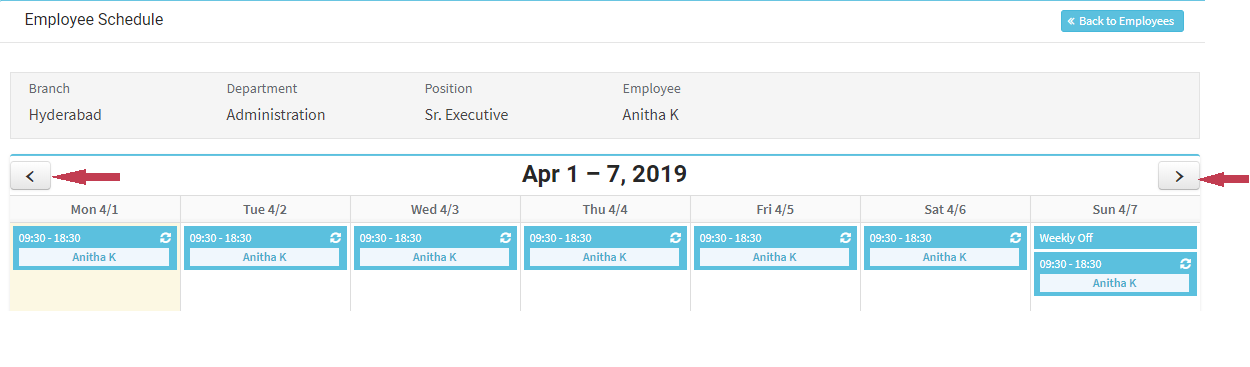
- You can view schedule for previous week(s) or for future week(s) by using forward and backward arrows
Employees > Employee Schedule
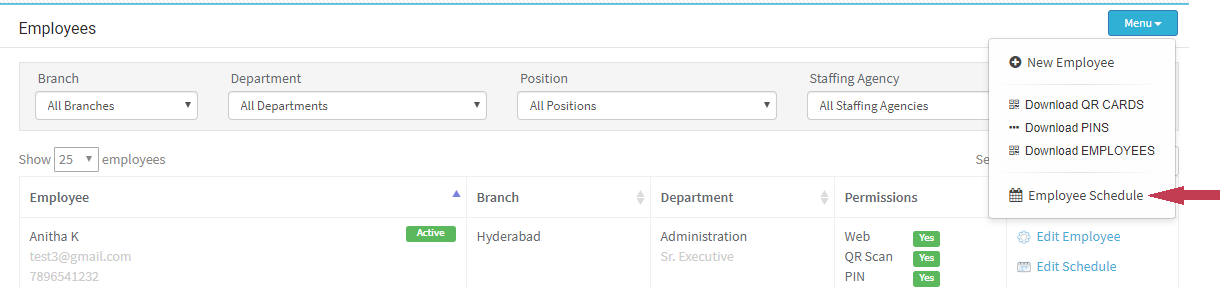
- Navigate to Employees > Menu > Employee Schedule
- You can View schedule for multiple employees at a time using ‘Employee Schedule’
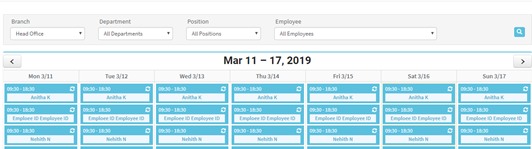
- You can edit the schedule of employee by clicking on the already defined schedule
- Change to required shift, and if want to change the Geofence select from the list
- Click Save
- The schedule will be changed only for the day.
- If there is no schedule defined for employee for a day click in the day
- Enter the required details, click ‘Save’