Employee other details
Employee > Leaves
- Employee is eligible for leaves only when the option ‘Enable for Leaves’ is on his Profile tab
- Options are available only when the employee is eligible for leaves
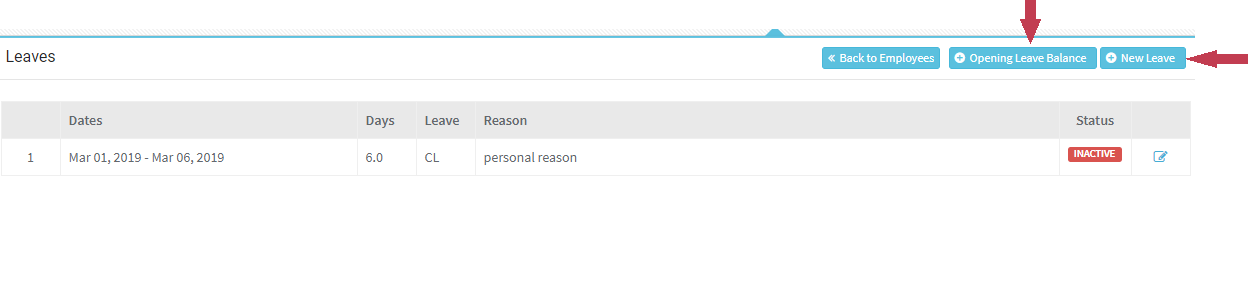
- Opening Leave Balance – you must first define how many leaves employee has
- Displays all Leave Types present in organization
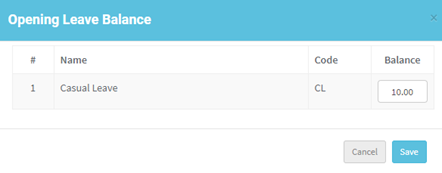
- Enter all leave balances, click ‘Save’
- Click ‘New Leave’ to apply leave for employee
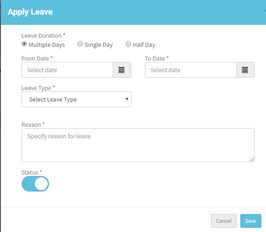
- Employee can apply leave for either Multiple days or Single Day or a Half day
- If want to apply for multiple leaves give ‘From Date’ and ‘To Date’, all the dates in between these days are marked as leaves
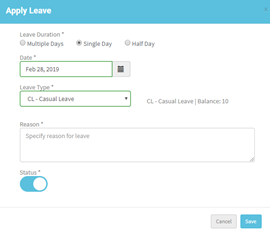
- When Leave Type is selected from the drop down it displays the number of leaves balance for the selected leave type
- Employee can’t take more than the balance leaves
- If it is Single day- select the required day, leave type and reason and click ‘Save’
- If it is Half Day- select the required day, leave type, Part of Day and reason and click ‘Save’
- When a leave is taken the balance will be automatically reduced
- You can make a Leave inactive, just by edit. Click on edit icon for the Leave then change the status, click ‘Save’
Employee > Location
- This is useful to allow employee to punch remotely
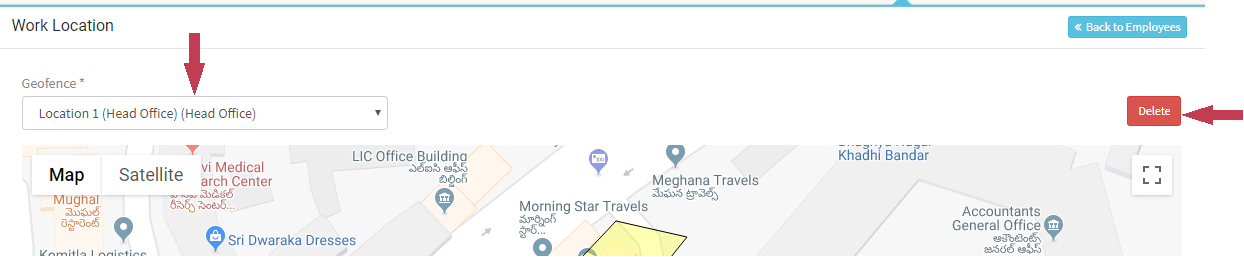
- Navigate to Employee > Location
- Select the required location from Geofence drop down
- Click Save
- If location is not required for employee, you can also delete it.
Employee > Travel

- You can enter all the travel details of employee
- Navigate to Employee > Travel
- Click on New Travel
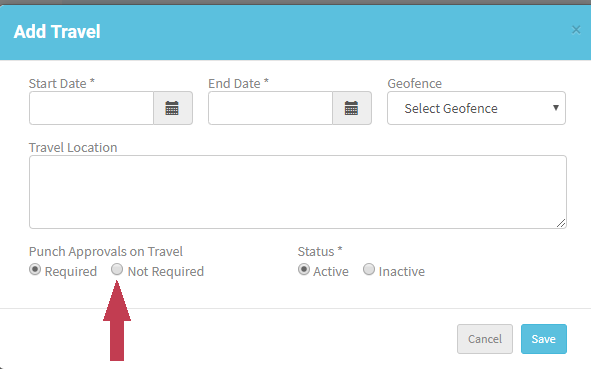
- Enter the ‘Start Date’ and ‘End Date’ of the travel
- Punch Approvals on Travel is marked as Required automatically. If the option is required, then the punches in the travel period will be sent for approvals
- Can change the Status of travel if not required or travel is cancelled
Employee > On Duty

- You can mark employee On-Duty
- Navigate to Employee > On-Duty tab
- Click ‘New On-Duty’
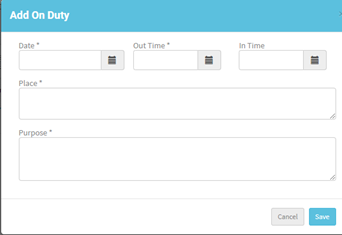
- Enter the Date, Out Time, Place and Purpose for On-Duty of an employee
- Enter all details, click ‘Save’
- You can’t enter another On-Duty until one On-Duty is completed, and to complete one On-Duty there should be both Out Time and In Time.